Main Screen
Overview
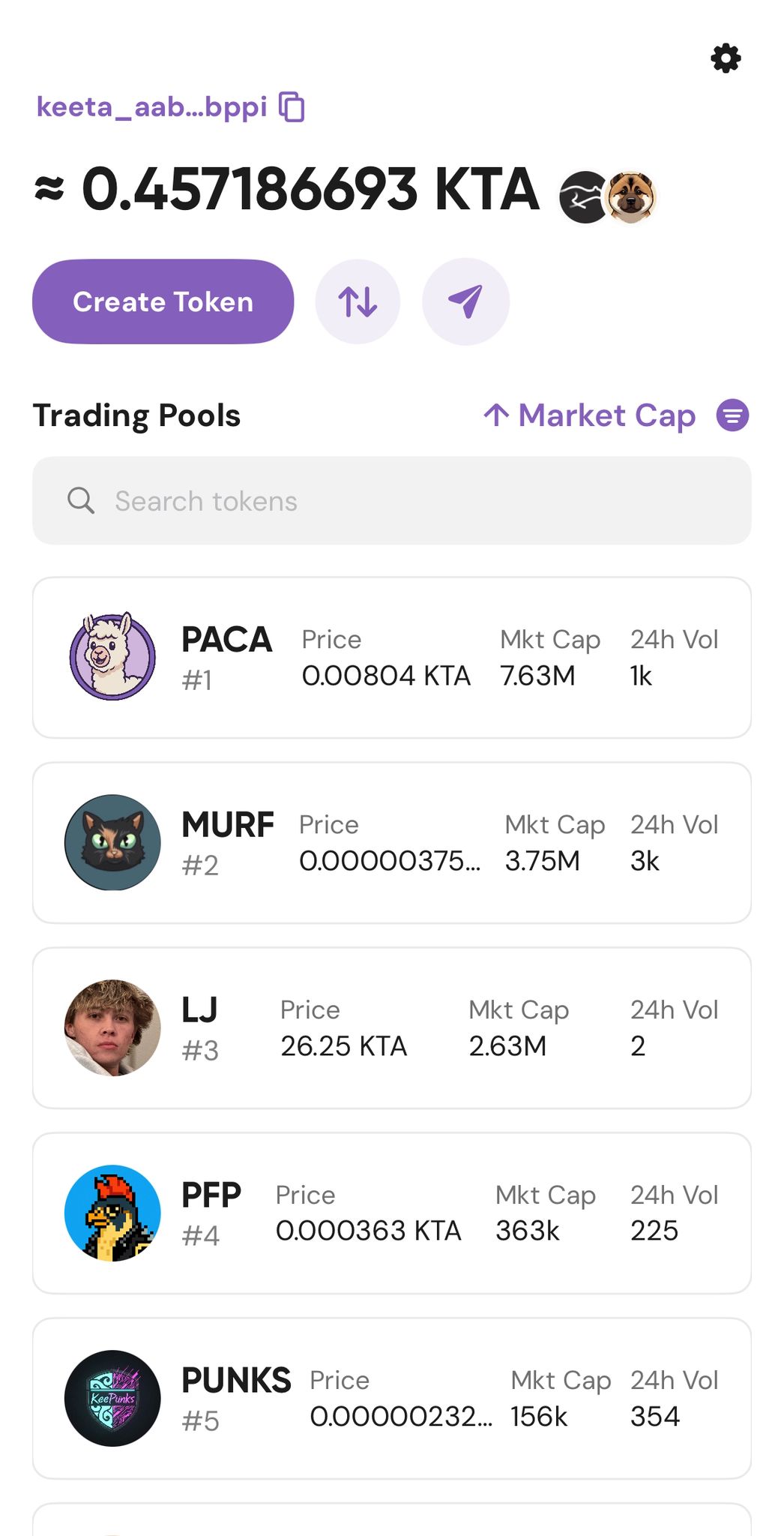
The Main Screen is the central hub of the Alpaca iOS app. From here, you can manage your wallet, move assets between networks, send tokens, create new projects, and explore all tokens available on the exchange.
This page walks you through each part of the Main Screen and explains what happens when you interact with it.
What You Can Do From Here
The Main Screen gives you quick access to all essential wallet and trading actions:
- View your total wallet balance
- See detailed token holdings
- Deposit or withdraw assets via the Base bridge
- Send tokens to other Keeta users
- Create new tokens or launch projects
- Browse and search all listed tokens
All interactions happen directly on the Keeta blockchain.
You always keep control of your private keys—no third party holds your funds.
How It Works (High Level)
When you open the Alpaca app, the Main Screen:
- Fetches your wallet balance directly from the Keeta network
- Displays tokens held at your Keeta wallet address
- Loads the global token list directly from the blockchain
Your assets never leave your wallet unless you explicitly initiate a transaction (send, bridge, trade, etc.).
Feature Walkthrough
Viewing Your Balance
Your total wallet balance is shown at the top of the screen.
This represents the combined value of all tokens held in your Keeta wallet.
- Tap the balance to open Wallet Details
- View a breakdown of individual tokens
- See balances, quantities, and current values
Depositing or Withdrawing (Base Bridge)
Tap the icon with up and down arrows to open the Base Bridge.
You can:
- Deposit: Move assets from the Base network into Keeta
- Withdraw: Move assets from Keeta back to Base
During bridging:
- Assets are locked on the source network
- Equivalent assets are released on the destination network
- Completion usually takes a few minutes, depending on network conditions
Sending Tokens
Tap the paper plane icon to send tokens to another Keeta wallet.
You’ll need to provide:
- The recipient’s Keeta wallet address
- The token to send
- The amount
Once confirmed, the transaction is submitted on-chain and typically settles within milliseconds.
Creating a Token
Tap Create Token to open the Token Creation Portal.
You can choose between:
-
Self-Funded Token
Launch immediately by providing your own liquidity. -
PacaLaunch
Raise KTA through Alpaca’s launchpad before your token goes live.
All tokens are issued directly on the Keeta blockchain, and you retain full control over configuration during creation.
Browsing Tokens
The bottom section of the Main Screen shows a scrollable list of all available tokens.
By default:
- Tokens are sorted by market capitalization (highest first)
You can:
- Use the search bar to find tokens by name or symbol
- Apply filters and sorting (price, volume, activity, etc.)
Tap any token to open its Token Details page, where you can:
- View charts and trading history
- Buy or sell directly
Summary
The Main Screen is your command center in Alpaca. From one place, you can manage your wallet, bridge assets, send tokens, create projects, and explore the ecosystem—all while staying fully non-custodial on the Keeta blockchain.