Import a Wallet
Overview
If you have already created a wallet before—either in Alpaca or another Keeta-native non-custodial wallet—you can easily import it into the Alpaca app.
Importing a wallet allows you to regain access to your existing assets by entering your 24-word recovery phrase. Alpaca then retrieves your wallet data directly from the blockchain.
No accounts. No custody. Just your keys.
Supported Wallets
You can import wallets created with:
- Alpaca Wallet (iOS)
- Keeta Wallet
- Other keeta-native non-custodial wallets
All Keeta-native wallets use the same recovery phrase standard.
How Wallet Import Works
When you import a wallet:
• You enter your 24-word recovery phrase
• Alpaca derives your wallet address from the phrase
• Wallet balances and history are fetched from the Keeta blockchain
This effectively “logs you in” to your wallet—without usernames, passwords, or centralized servers.
Importing Your Wallet
Step 1: Choose Import Wallet
On the app’s welcome screen:
- Tap Import Wallet
- Confirm that you want to restore an existing wallet
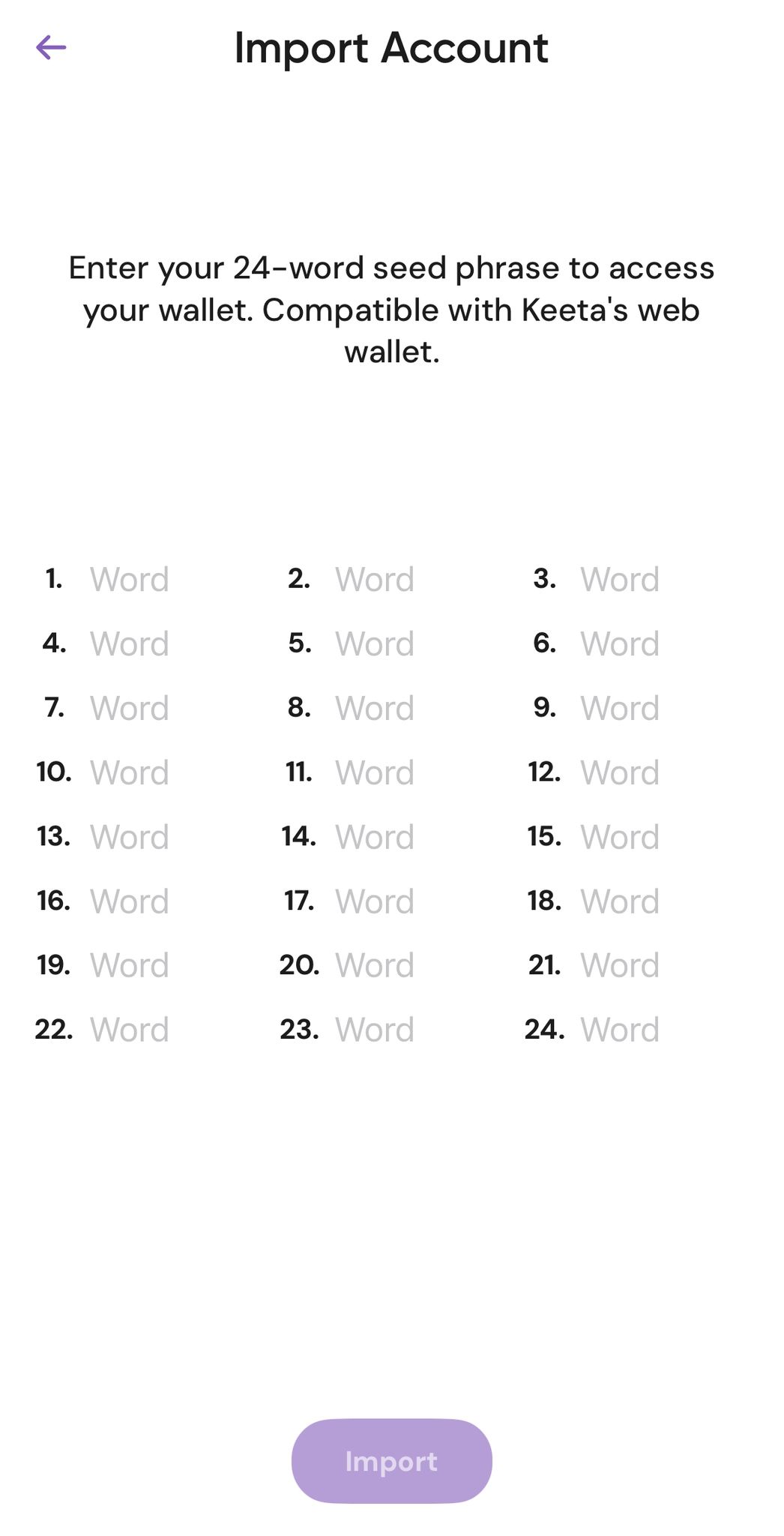
Step 2: Enter Recovery Phrase
Carefully enter your 24-word recovery phrase in the correct order.
- Words must match exactly
- Order matters
- Spaces and spelling are important
Once completed, confirm the import.
Security Reminder
Anyone with your 24-word recovery phrase has full control over your wallet.
Never share it
Never store it online
Never enter it on websites or with people you don’t trust
After Import
Once verified:
- Your wallet opens automatically
- Your balances are restored from the blockchain
- You can immediately use all Alpaca features
No data is stored centrally—everything remains fully non-custodial.
Summary
Importing a wallet in Alpaca lets you safely restore access to your existing Keeta wallet using your recovery phrase. Whether you created your wallet in Alpaca or Keeta Wallet, your assets remain fully under your control—secured by the blockchain, not by an account.